Setup
Create a meet workspace, configure the Legacy SSO profile in Google Admin Console, create and sign in to the bot accounts, then assign the SSO profile and register meet logins
Setting Up Google Meet Authentication
Authenticated Meet bots sign in to a Google Workspace you control via SAML SSO. Meeting BaaS acts as the SAML Identity Provider (IdP); your Google Workspace is the Service Provider. This guide walks through the one-time setup.
Never route real users through the bot IdP. The Legacy SSO profile you configure below redirects sign-in to Meeting BaaS, so it must apply only to your bot accounts — never to your human users. Scope it one of two ways:
- Dedicated domain or subdomain (recommended): Use a domain or subdomain you own that is reserved for bots — for example
bots.acme.com— and configure SSO there. - Dedicated organizational unit or group: If you keep bots on an existing domain, move the bot accounts into a separate organizational unit (or group) and assign the Legacy SSO profile to only that OU/group, leaving everyone else on normal sign-in.
Either way, the SSO profile must target the bot accounts exclusively.
Prerequisites
- A Google Workspace with super admin access to the Admin Console.
- Bot accounts isolated from your human users — either on a dedicated domain/subdomain you own and have verified, or in a dedicated organizational unit/group.
- A Meeting BaaS v2 API key with full access.
Overview
Step 1 — Create a meet workspace
A meet workspace is the parent resource for one Google Workspace domain. It stores the SAML signing keypair shared by every login attached to it.
You have two options for the keypair:
Option A — Let the server generate the keypair (recommended)
Pass generate_keypair: true. The server creates a self-signed RSA-2048 keypair with 10-year validity.
curl -X POST https://api.meetingbaas.com/v2/meet-workspaces \
  -H "x-meeting-baas-api-key: $API_KEY" \
  -H "Content-Type: application/json" \
  -d '{
    "name": "Acme Production Workspace",
    "domain": "bots.acme.com",
    "generate_keypair": true
  }'
Option B — Bring your own keypair
Provide cert_pem and private_key_pem together (mutually exclusive with generate_keypair).
curl -X POST https://api.meetingbaas.com/v2/meet-workspaces \
  -H "x-meeting-baas-api-key: $API_KEY" \
  -H "Content-Type: application/json" \
  -d '{
    "name": "Acme Production Workspace",
    "domain": "bots.acme.com",
    "cert_pem": "-----BEGIN CERTIFICATE-----\n...\n-----END CERTIFICATE-----",
    "private_key_pem": "-----BEGIN PRIVATE KEY-----\n...\n-----END PRIVATE KEY-----"
  }'
Either way, the response includes the workspace_id and the cert_pem you'll upload to Google. private_key_pem is never returned — it is encrypted at rest and only retrievable by rotating the keypair.
{
  "success": true,
  "data": {
    "workspace_id": "f0e1d2c3-b4a5-6789-0123-456789abcdef",
    "name": "Acme Production Workspace",
    "domain": "bots.acme.com",
    "cert_pem": "-----BEGIN CERTIFICATE-----\n...\n-----END CERTIFICATE-----",
    "state": "active",
    "created_at": "2026-06-15T10:00:00.000Z",
    "updated_at": "2026-06-15T10:00:00.000Z"
  }
}
Each domain may exist at most once per team. Creating a second workspace for the same domain returns 409 Conflict.
Step 2 — Configure the Legacy SSO profile in Google Admin Console
This is the step that points your Google Workspace at Meeting BaaS as a SAML Identity Provider. You'll do it once per workspace, signed in to the Google Admin Console as a super admin.
Open the third-party SSO settings
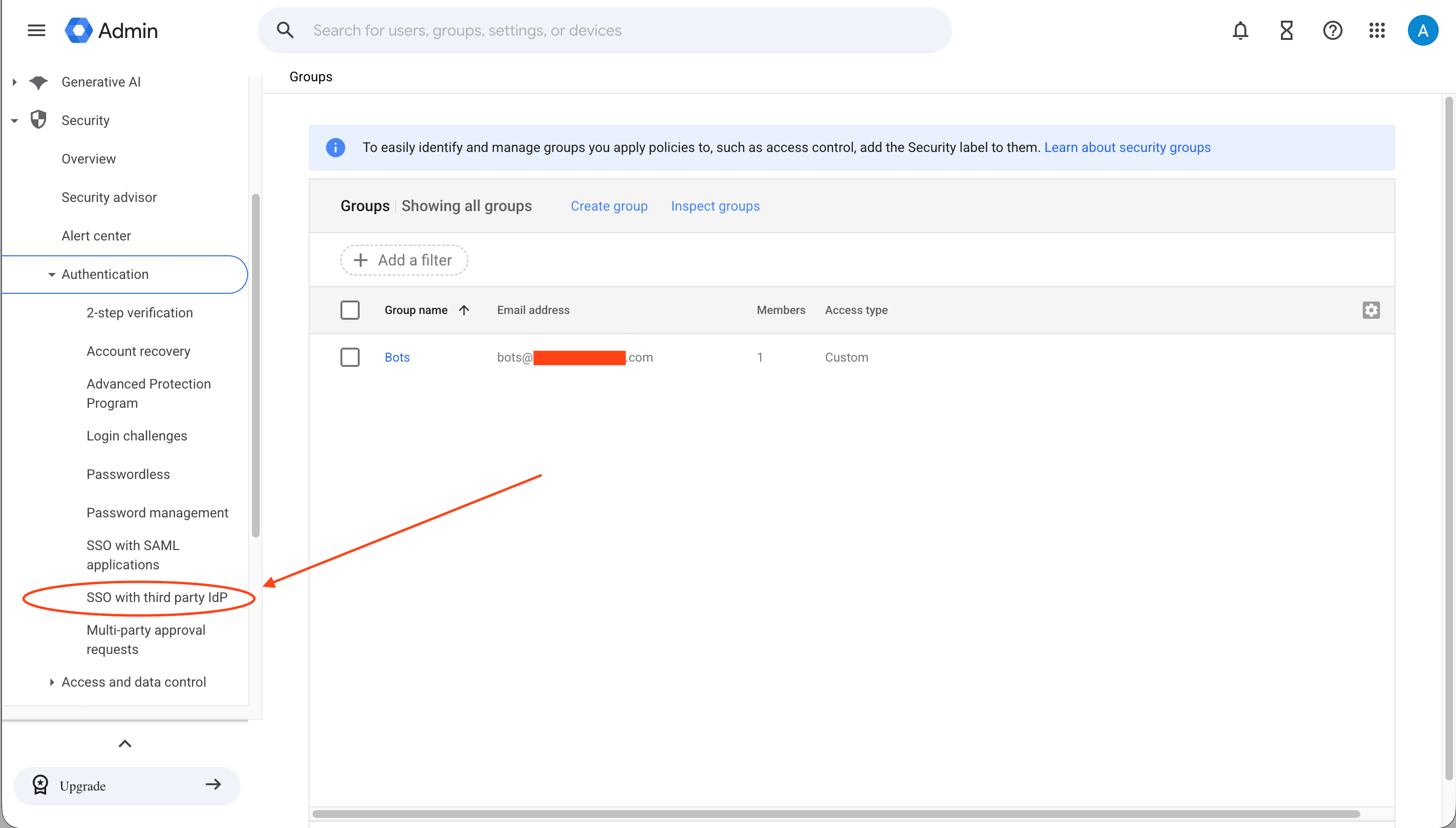
In the Admin Console left nav, go to Security → Authentication → SSO with third party IdP.
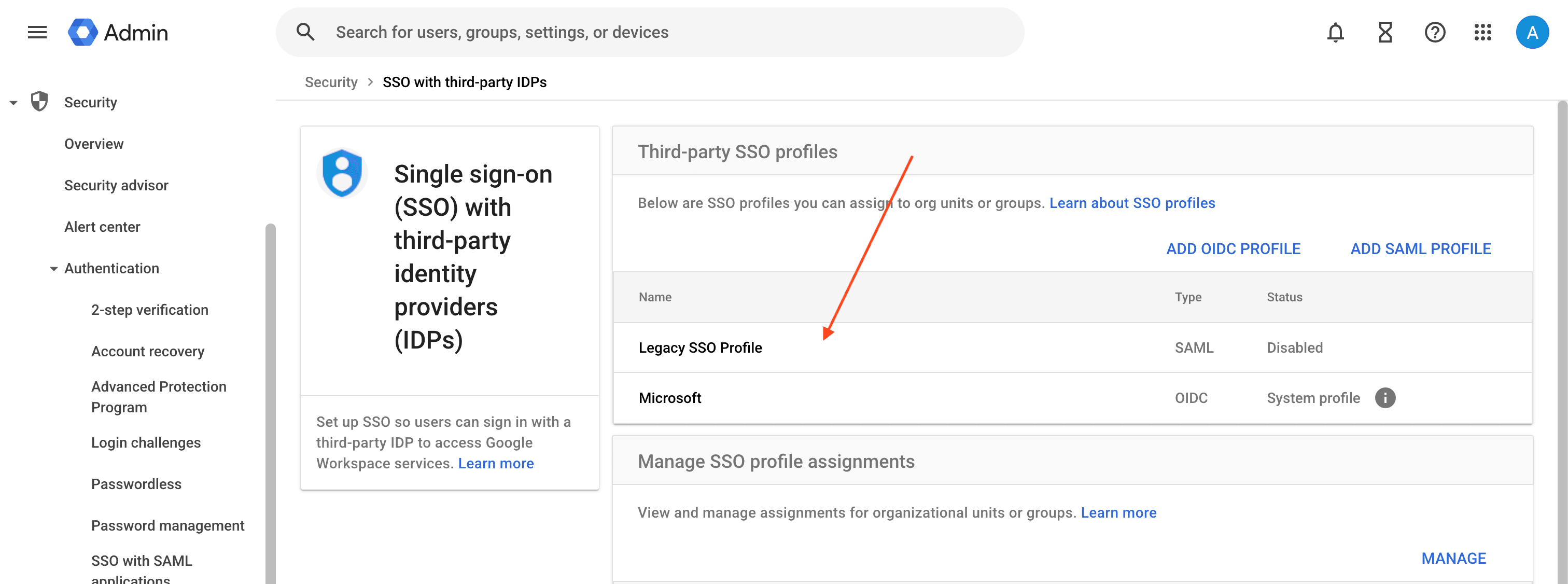
Under Third-party SSO profiles, open the Legacy SSO Profile (type SAML — it starts out Disabled).
Enable the profile and enter the IdP details
On the Legacy SSO profile page, fill in the following and Save:
| Field | Value |
|---|---|
| Enable legacy SSO profile | ✅ Checked |
| Sign-in page URL | https://api.meetingbaas.com/v2/meet-sso/sign-in |
| Sign-out page URL | https://api.meetingbaas.com/v2/meet-sso/sign-out |
| Verification certificate | Upload the cert_pem from Step 1 (use Replace certificate / Or upload) |
| Use a domain specific issuer | ✅ Checked |
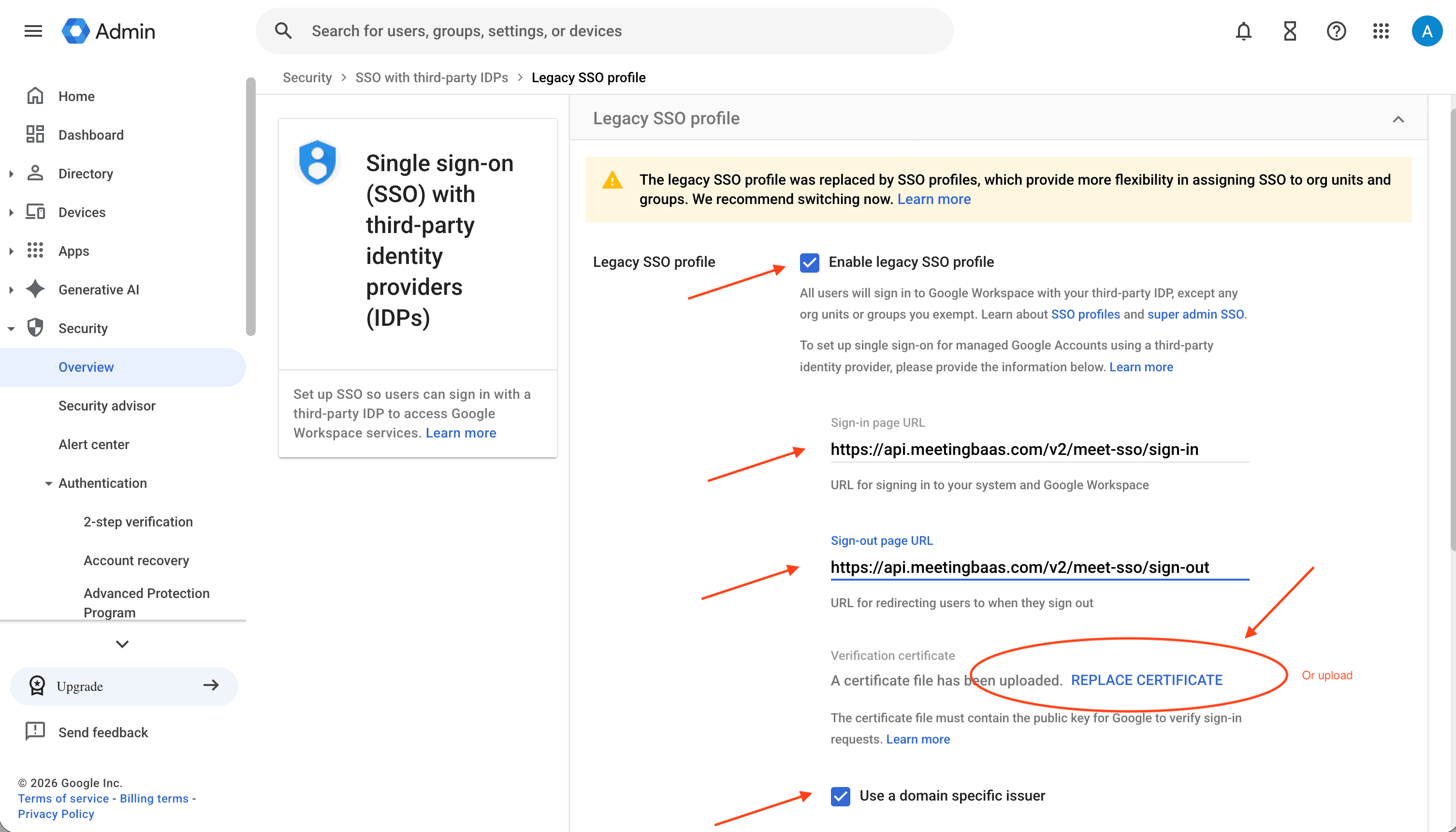
These /v2/meet-sso/* URLs are SAML endpoints that Google calls during sign-in — you configure them in Google, you never call them yourself. The certificate you upload here must always match the one stored on the workspace. If you rotate the keypair, upload the new certificate at the same time.
Do not assign the profile to your bot accounts yet. As soon as the Legacy SSO profile covers an account, Google stops accepting its password and redirects sign-in to Meeting BaaS — which means you can no longer complete that account's first-run setup by hand. Create the bot accounts and finish their welcome flow first (Step 3), then come back and assign the profile in Step 4.
Step 3 — Create the bot accounts and complete the welcome flow
Do this before assigning the SSO profile in Step 4. For each Google account the bots will sign in as:
- Create the user in Google Admin Console (for example
bot1@bots.acme.com) and note the temporary password. - Sign in to that account yourself, in a browser, using that password, and complete the entire "Welcome to Workspace" first-run flow — accept the terms, set a new password if prompted, and dismiss the onboarding screens until you land on a normal signed-in Google page. A freshly created account that has never been signed into interactively cannot be used programmatically: the meet login flips to
invalidon first use. - Set the account language to English (United States) to ensure the sign-in and Meet UIs are in the expected state.
Order matters. Once the Legacy SSO profile is assigned to the account's group/OU, Google redirects its sign-in to Meeting BaaS and the account password no longer works — so the welcome flow can no longer be completed interactively. If you have already assigned the profile, temporarily move the account out of the SSO scope (or set that scope's Select SSO profile back to None), complete the welcome flow, then assign the profile again.
Create a Google Group (for example bots@bots.acme.com) and add the bot users as members. Putting this group on a calendar invite lets the assigned bot land in Meet's verified queue and bypass the waiting room. You'll reference this group as email_group in Step 5.
Step 4 — Assign the SSO profile to your bot group (or OU) only
Only do this once every bot account from Step 3 has been signed into and has completed its "Welcome to Workspace" flow. Assigning the profile first locks you out of the interactive sign-in needed to finish that flow.
Back in Security → Authentication → SSO with third party IdP, open Manage SSO profile assignments. Under Groups, pick the group that contains your bot accounts (for example bots@bots.acme.com) — or choose the bot organizational unit. A new scope starts with Select SSO profile: None.
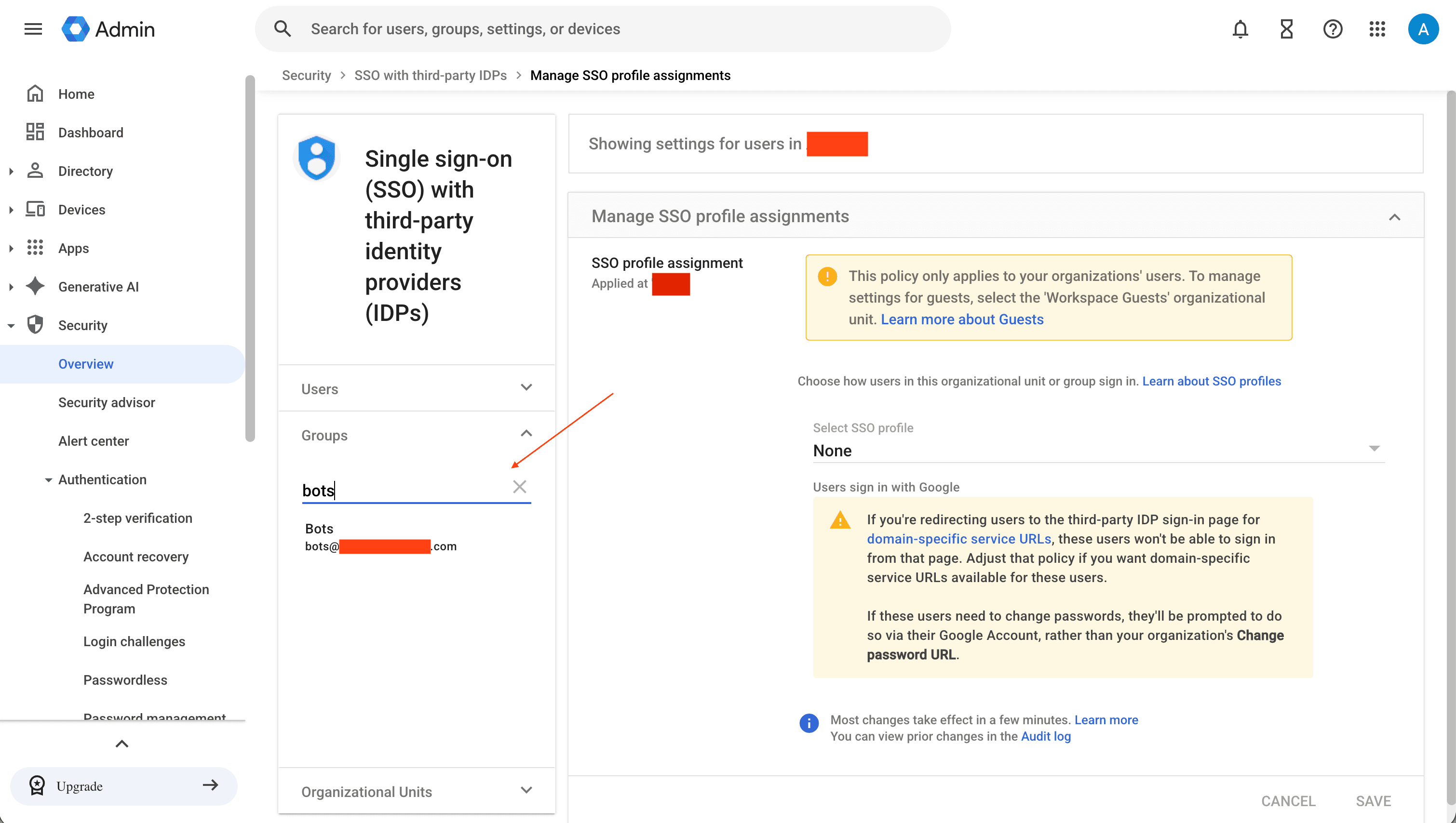
Set Select SSO profile to Legacy SSO profile, then click Override (or Save). This applies the bot IdP to that group/OU only and overrides the inherited organization setting.
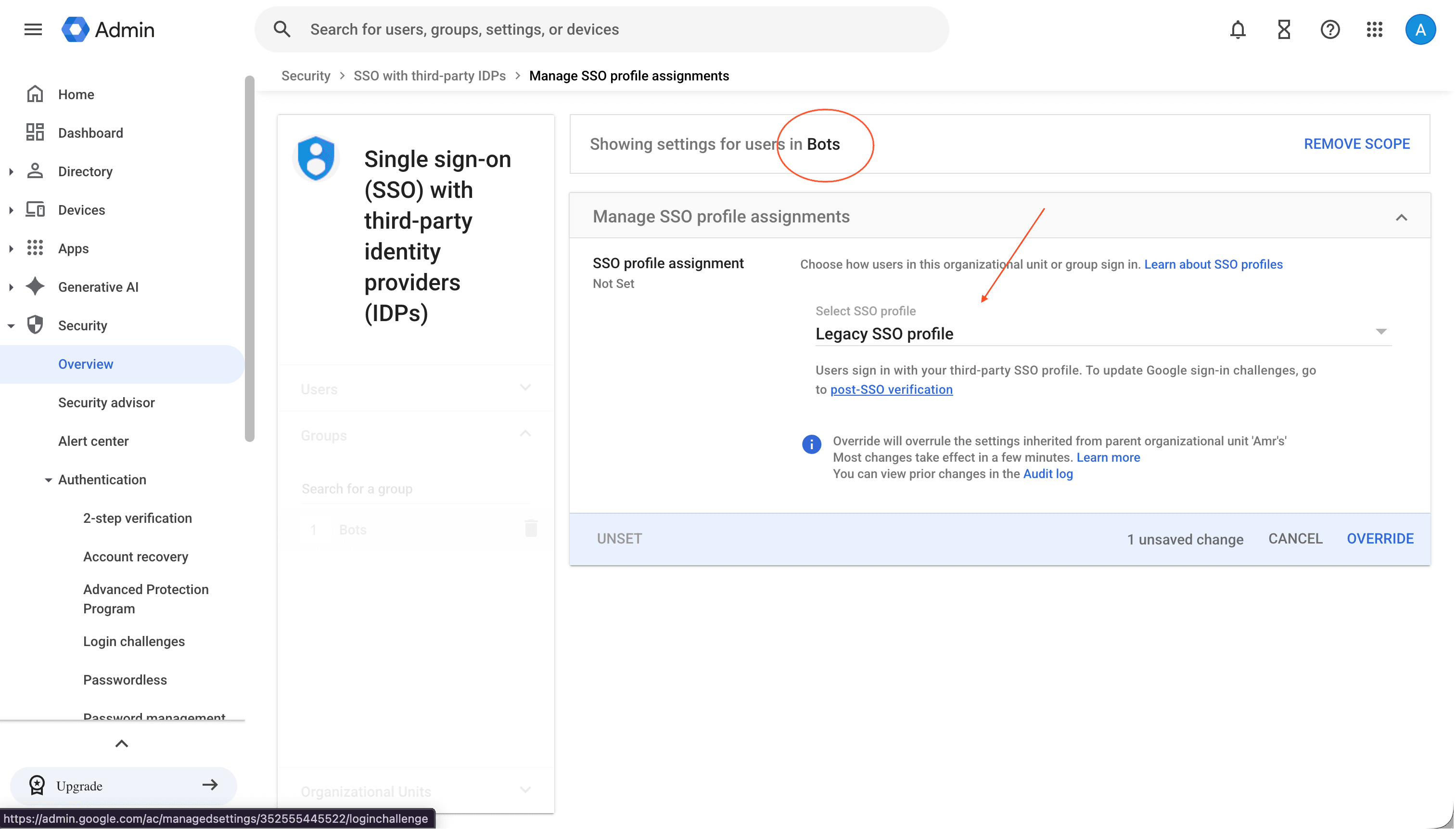
Assign the profile to the bot group/OU only. Never assign it to a scope that contains real users, or they will be redirected through the bot IdP. Changes take a few minutes to take effect.
Step 5 — Register a meet login per user
Create one meet login for each Workspace user, referencing the workspace_id from Step 1.
curl -X POST https://api.meetingbaas.com/v2/meet-logins \
  -H "x-meeting-baas-api-key: $API_KEY" \
  -H "Content-Type: application/json" \
  -d '{
    "workspace_id": "f0e1d2c3-b4a5-6789-0123-456789abcdef",
    "name": "Production Bot Pool — Account 1",
    "email": "bot1@bots.acme.com",
    "email_group": "bots@bots.acme.com"
}'| Field | Required | Notes |
|---|---|---|
workspace_id | ✅ | UUID of the parent workspace. |
name | ✅ | Friendly label. Not unique. |
email | ✅ | The Workspace user's email. Its domain must match the workspace domain (or a subdomain — e.g. bot1@dev.bots.acme.com is valid for workspace domain bots.acme.com). |
email_group | optional | Google Group address for round-robin pooling and verified-queue admission. Logins sharing the same email_group form one pool. Same domain rule applies. |
extra | optional | Free-form JSON for your own tags (filterable on the list endpoint). |
Each email may exist at most once per team (409 Conflict on duplicates). An email/email_group whose domain doesn't match the workspace returns 422 Unprocessable Entity. An unknown workspace_id returns 404 Not Found.
Repeat for each user. Logins sharing an email_group form a round-robin pool — add more logins to increase concurrent capacity (each login handles up to 20 concurrent sessions by default).
You're ready
With at least one active workspace and one active login, you can send authenticated bots. Continue to Sending Authenticated Bots.
Maintenance
Rotating the keypair
Rotate a workspace's certificate and key by sending both cert_pem and private_key_pem to PATCH /v2/meet-workspaces/{workspace_id}. The new pair takes effect immediately for all logins under the workspace, so upload the new certificate to Google Admin Console at the same time — there is a brief window where the stored cert and Google's cert must match.
Re-enabling an invalid resource
When a workspace or login flips to invalid, fix the underlying cause (re-upload a matching cert, complete a user's interactive "Welcome to Workspace" login — temporarily removing it from the SSO scope if needed, un-suspend the account), then re-enable it with a PATCH (PATCH /v2/meet-workspaces/{workspace_id} or PATCH /v2/meet-logins/{credential_id}). Check last_error_message for the reason.
Deleting a workspace
DELETE /v2/meet-workspaces/{workspace_id} cascades to all of its logins. Delete a single login with DELETE /v2/meet-logins/{credential_id}.